A look in SHUTT is a finished design for a run photo: the typeface, the layout, the stats and the route, all filled in from your Strava activity. There are 33 of them on the rail under the photo. Swipe to switch, and your photo and run stay put while the design changes around them. Five looks are Pro; the rest are free.
This post explains what a look actually is, how it compares with Strava's own share image, and walks through four looks that show the range: Press, Dusk, Motion and Silver.
What is a look, and how is it different from a template?
A template is a frame with empty boxes. You type the distance, drop in the time, and if your run does not fit the boxes, it does not fit.
A look works the other way round. It starts from the run:
- It reads the activity. Distance, time, pace, date, place and route come from Strava. Nothing is typed.
- It only offers itself when it can draw. A look built around the route does not show up on a treadmill run with no GPS track, so you never pick a design that comes out half empty.
- It stays editable. Every block can be dragged, resized and restyled. Once you change a look, its card is marked EDITED; tap it while it is selected and it reads RESET, which puts the original back.
- Switching keeps the photo. The photo and the run do not change when you swipe, so comparing ten designs takes ten swipes.
That is the difference that matters day to day: you choose by looking, not by building.
What does Strava's own share give you?
At the time of writing (October 2026), Strava's sharing help page describes two images: a map of the activity, or one of the photos attached to it, with stats added. For runs those stats are moving time, distance and pace, and Strava says they cannot currently be customised. Only GPS activities can be shared this way, and the activity should be visible to Followers or Everyone. Strava also offers a transparent stats sticker for Instagram Stories.
That is quick, free and already on your phone, and for many runs it is enough. Where SHUTT is different:
- you pick the design, from 33 rather than one;
- you pick the stats, from more than 30;
- the route is drawn over your photo as a line or one of 49 route styles, rather than on a map;
- every element can be moved off a face or a horizon.
If you are comparing tools more broadly, the overlay tools comparison covers the alternatives honestly, including where they beat SHUTT.
Four looks worth knowing
The rail is a strip of numbered cards, most of them carrying a city photograph so you can find your way back to one you liked. Here are four that show how different two looks can be on the same run.
Press
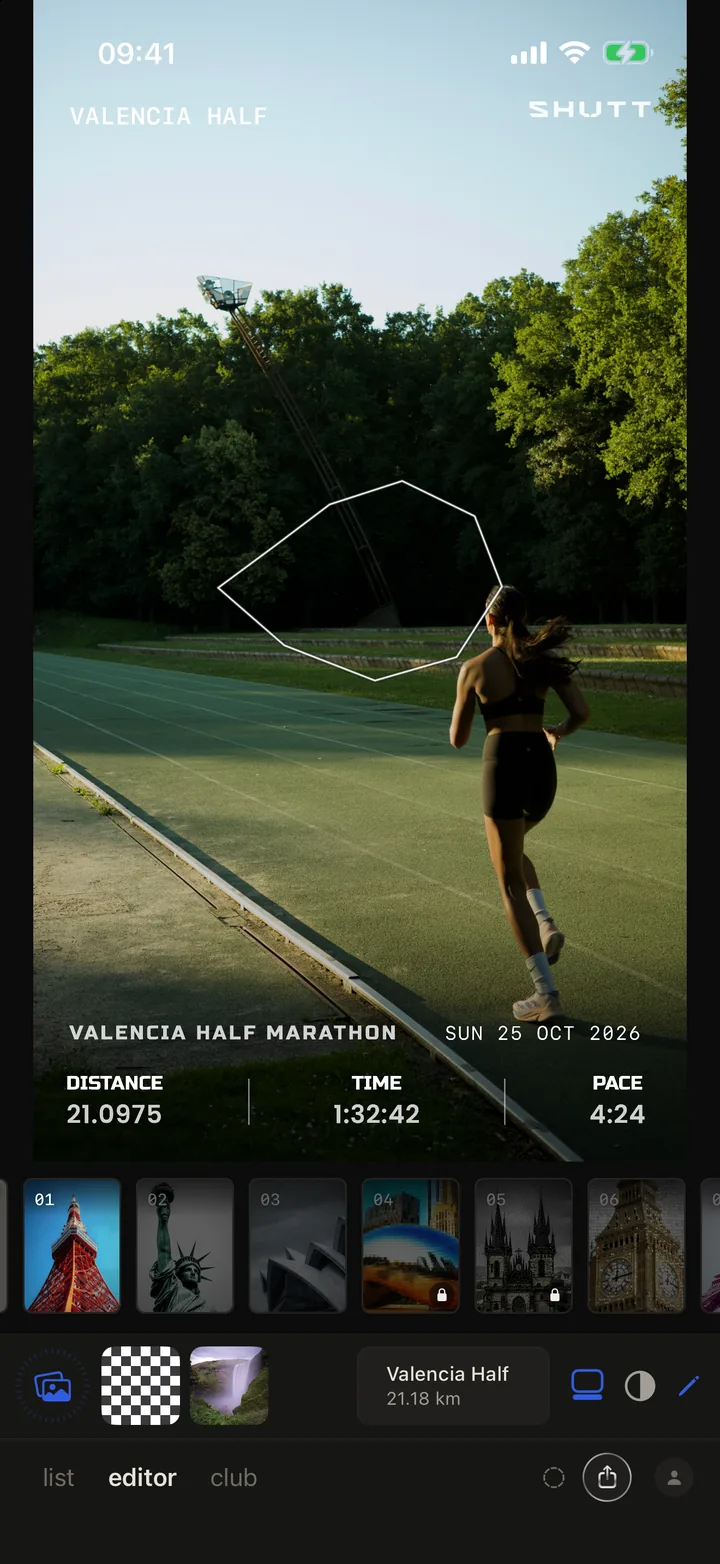
Press is the first card on the rail and the plainest of the four. The activity title sits at the top and three stats sit in columns along the foot; on a race, the race name and date run in a line just above them. The route is drawn as a thin white line in the middle of the frame. It is the look to start from when the photo is the point and the numbers are a caption.
Dusk
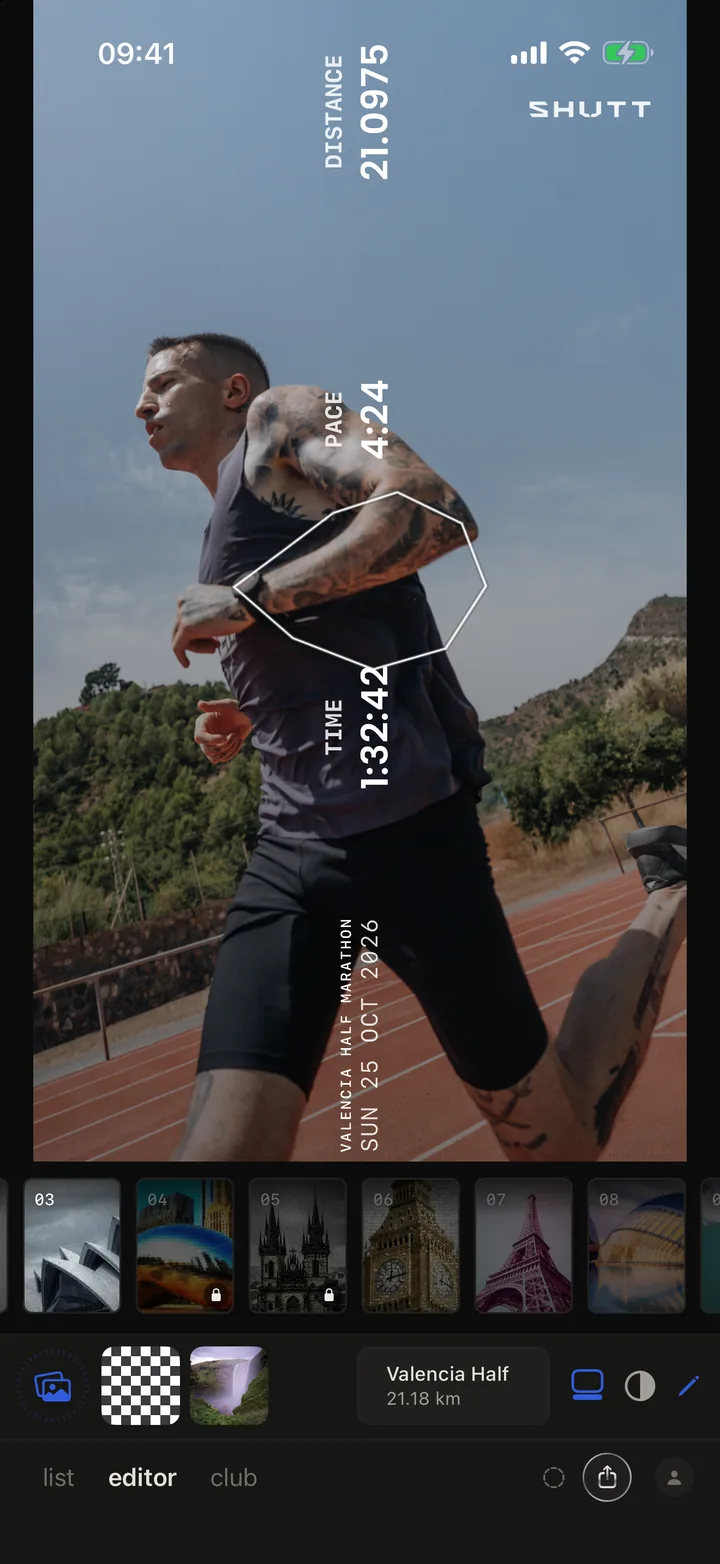
Dusk turns the stats on their side. Distance, pace and time are set vertically up the frame, with the race name and date along the bottom edge and the route drawn over the runner. It suits tall photos with a lot of sky, where a horizontal row of numbers would sit awkwardly across the body.
Motion
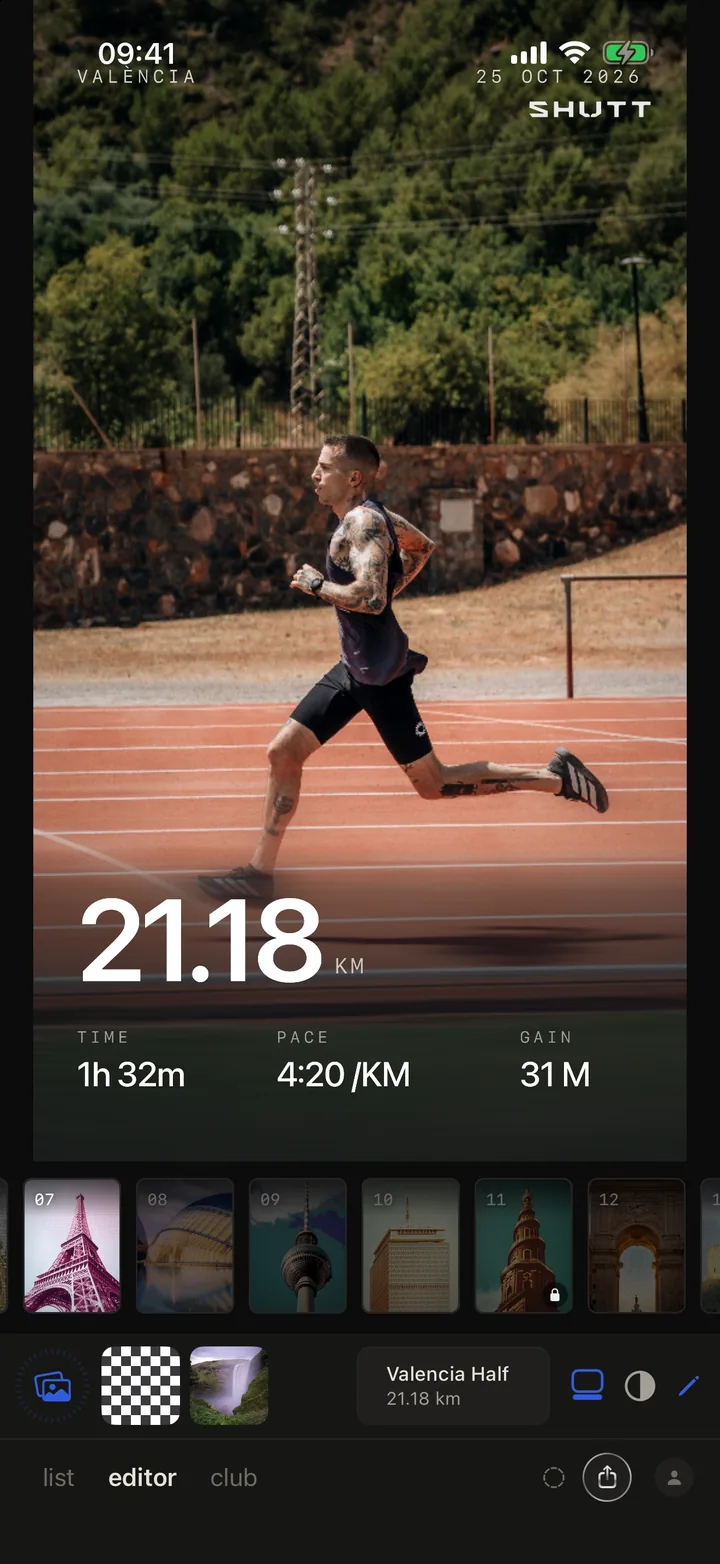
Motion makes the photo itself part of the design. A band of the picture is blurred sideways, as if the camera panned, and the distance sits large on top of it with time, pace and gain below. Because the band is made from your own photo, it carries the type without a flat black box.
Motion has seven styles. Select it and tap the pencil, and a row of styles opens under the photo: Band, Scrim, Rule, Whole, Zone, Streak and Ink. Scrim and Ink are made for bright photos; Streak cuts two streaks of blur straight through the distance.
Silver
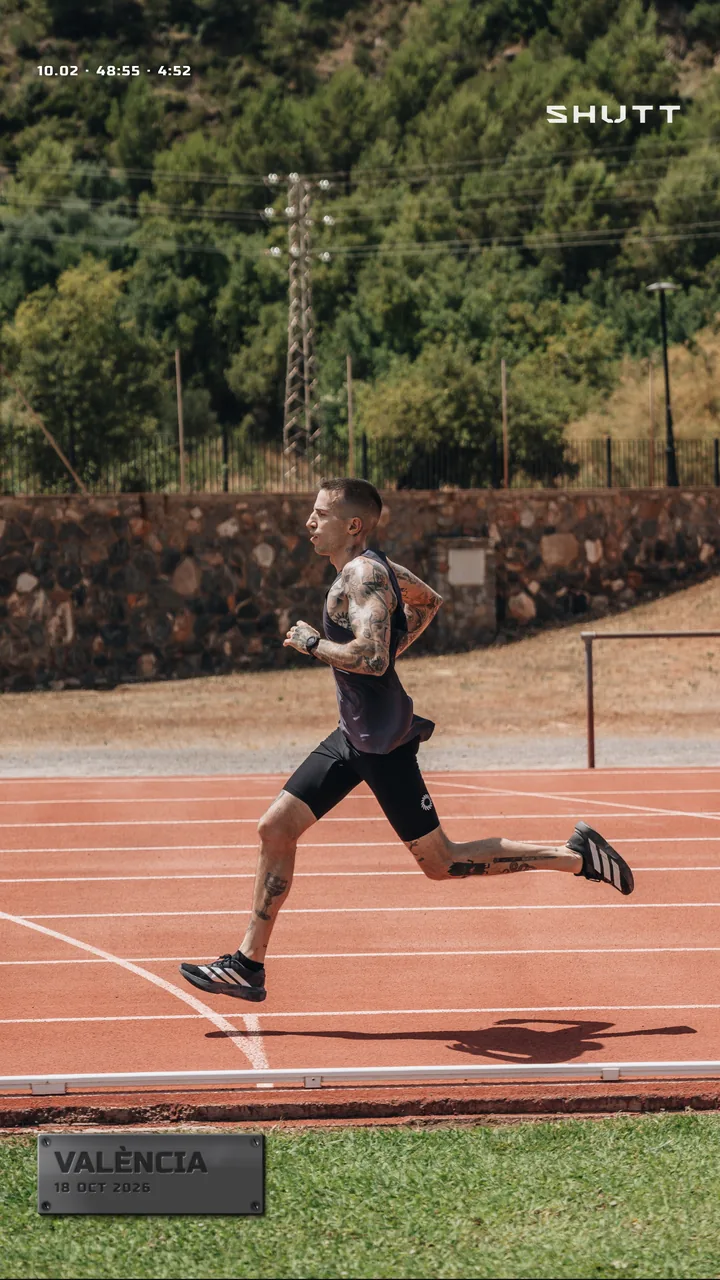
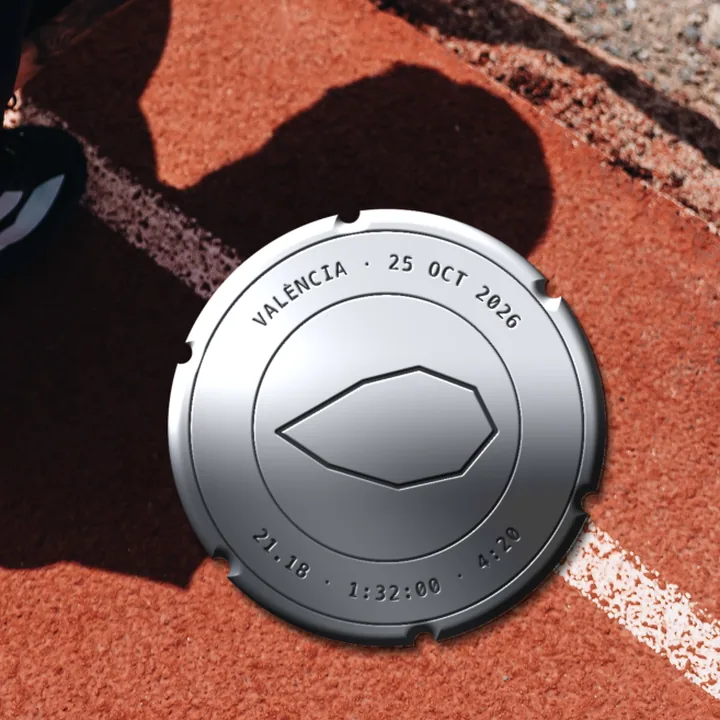
Silver is the newest of the four and the most physical. The run is engraved on a piece of brushed metal, and the metal is rendered against your photo, so its sheen picks up the colours of the picture. It has four styles, which you step through with the style chip on the plate's toolbar:
- Nameplate: the place and date on a small plate, with a thin line of stats at the top of the frame.
- Nameplate with the route: the same plate with the route engraved beside the name.
- Data plate: a taller plate listing the run's numbers, like the rating plate on a machine.
- Caseback: a round plate like the back of a watch, the place and date around the rim and the route in the centre.
The two styles with the route only appear when the run has one.
Which looks are Pro?
Five of the 33 looks carry a small lock on their card. Most of them are compositions built for weekly recaps rather than single runs.
The lock does not stop you trying them. A Pro look is fully usable in the editor; SHUTT only asks for Pro when you save it. Press, Dusk, Motion and Silver are all free.
For the whole picture: free covers distance, pace, splits, elevation and the route, and free exports carry a small SHUTT mark. Pro opens the premium looks, heart-rate stats, five premium route styles, removing the SHUTT mark and transparent export. SHUTT is iPhone only.
How to do it in SHUTT
- Connect Strava once. Your activities appear on their own; SHUTT only reads them.
- Open the editor tab and pick the run from the activity chip under the photo.
- Pick a photo from your camera roll with the photo button.
- Swipe the looks rail under the photo. Each card applies its look to your photo straight away.
- Tap the pencil to tune the look. On Motion this opens its row of styles; on most looks it opens the editing panels.
- Tap a block to change it. On Silver, tap the plate and use the style chip to move between nameplate, route plate, data plate and caseback.
- Move anything that covers the photo. Drag a block away from a face, pinch to resize it.
- Tap the share button and choose Save (to Photos) or IG Story.
Picking a look for a photo
A few rules of thumb that hold up:
- Busy photo, lots of detail: a quiet look like Press or Silver's nameplate, which keeps the type small and at the edge.
- Big empty sky or wall: Dusk, or a look with one large number.
- A photo that already has movement in it: Motion, which leans into it.
- A run you want to remember as an object: Silver's caseback.
For more on getting the photo itself right before any design goes on it, see how to make Strava photos look good. For layouts by post type, the Strava Instagram Story template guide has more. And the features page lists everything SHUTT can put on a photo.