Short answer: a good Strava photo is a real photo from the run with two or three stats set in clean type over it, exported at the size of the place you post (9:16 for Stories, 4:5 for the feed). Replacing the Strava screenshot with your own photo does most of the work.
Why does the default screenshot fall flat?
The Strava activity screen was built to be scrolled inside Strava, not posted somewhere else. Drop a screenshot into Instagram and you get a phone status bar, a small map, a dozen numbers at the same weight and a shape that does not fit a Story. It reads as a receipt.
The runs that look good on Instagram follow a simple pattern: a photo that shows where you were, and a few numbers that say what you did. Everything below is about getting those two parts right.
Step 1: Take a photo worth posting
You do not need a camera or a photography course. You need a photo taken on purpose.
Light
- Early morning and the last hour before sunset give soft, warm light and long shadows. Even a car park looks better.
- Overcast days give even light with no harsh shadows on faces.
- Night runs work when there is something lit: wet streets, shop windows, a bridge.
- Midday sun is the hardest. Shoot with the sun behind you or find shade.
Composition
- Leave space for the stats. Frame with empty sky, road or water in the top or bottom third. That is where your numbers will sit.
- Show movement. Shoes mid-stride, a runner passing, a trail curving away. These say "run" without a caption.
- Use the place. A bridge, a coastline, a track bend in fog. The route is often the most interesting thing in the frame.
Phone basics
- Wipe the lens. Sweat and pocket lint blur everything.
- Use the volume button as the shutter when your hands are wet.
- Take five frames, not one. Pick later.
- Do not zoom on a phone with one lens. Walk closer.
- Short video clips count too. A three-second clip of your feet on a trail can carry stats as well as a photo.
Step 2: Pick the stats that tell the story
Most cluttered run posts come from showing everything Strava recorded. Pick for the run you just did.
| Kind of run | Show | Leave out |
|---|---|---|
| Race | Finish time, distance, pace | Cadence, calories |
| Long run or milestone | Distance, total time | Splits |
| Easy run with a good photo | Distance, maybe the place | Almost everything else |
| Intervals | Rep paces or splits | Total time |
| Hilly trail | Elevation gain, distance, route | Pace |
The test: if someone cannot read your stats in three seconds, there are too many. On Instagram you get about two seconds of attention per Story. The photo carries the feeling; the numbers add context.
Step 3: Put the stats on the photo
There are three practical ways to do this. Each is covered in more detail in how to add stats to your running photos.
Strava's own share
Strava can share an activity to Instagram Stories with your stats laid over a photo or the route map. It is free and quick. The trade-off is control: the layout and type are Strava's, so every share looks like every other Strava share, and it is built for Stories rather than feed posts.
By hand in Canva or Instagram
- Open your stats in Strava and note the numbers you picked in Step 2.
- Create a design at 1080 x 1920 (Story) or 1080 x 1350 (feed post) in Canva.
- Set your run photo as the background, filling the frame.
- Add one text box per stat. Big number, small label.
- Add a soft dark shadow or a dark gradient behind the text if the photo is bright.
- If you want the route, screenshot the Strava map, crop it tight and place it in a corner.
- Export as PNG and post.
This takes 10 to 15 minutes per post. It gives full control, but every stat is typed by hand, which is where wrong paces come from. Instagram's own text tool is faster but offers a fixed set of fonts and no route.
With an app that reads Strava
Apps built for this read the activity from Strava and lay out the stats for you. SHUTT is the one I make, for iPhone. How to do it in SHUTT:
- Connect Strava once. Your activities appear on their own.
- Open an activity and pick a photo or video clip from your camera roll.
- Choose one of 33 looks. Each is a finished design with the stats already filled from Strava, so nothing is typed.
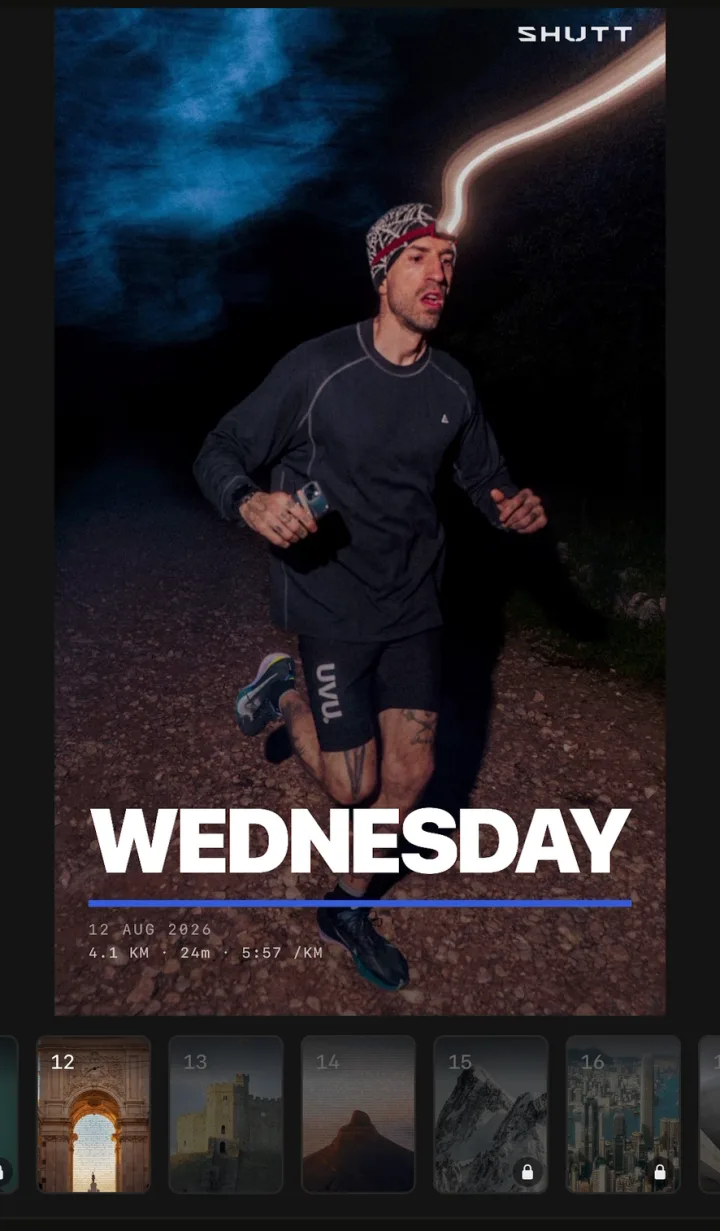
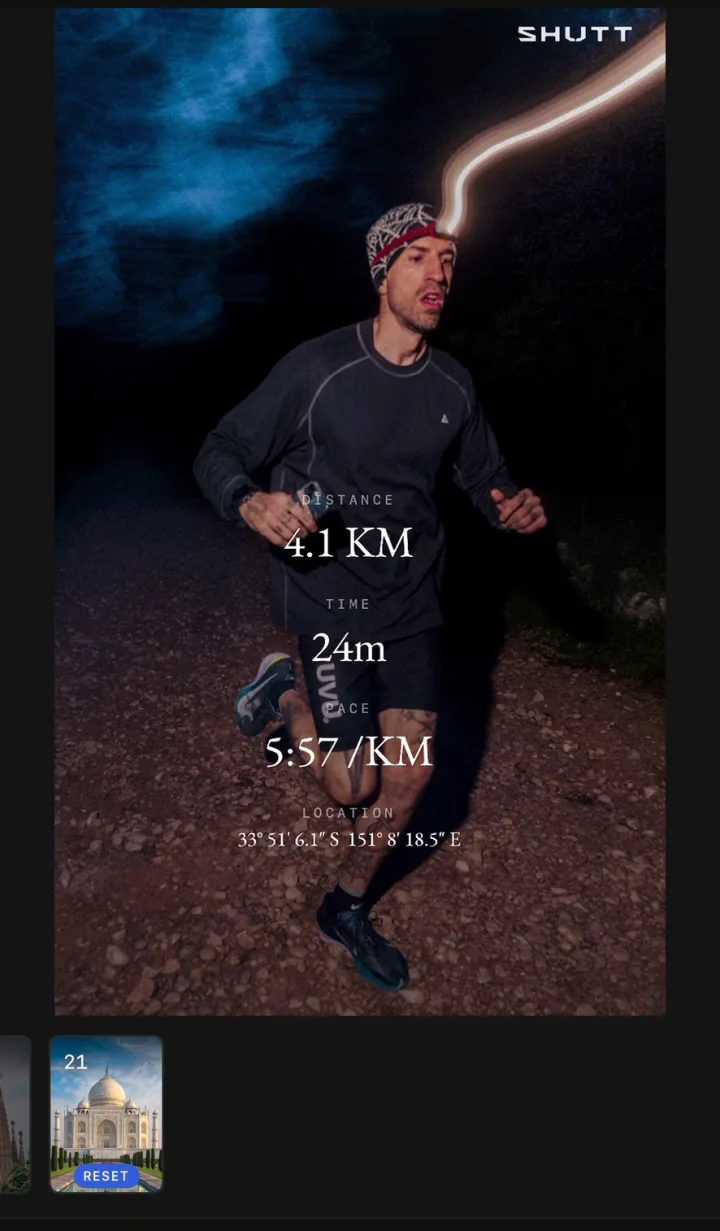
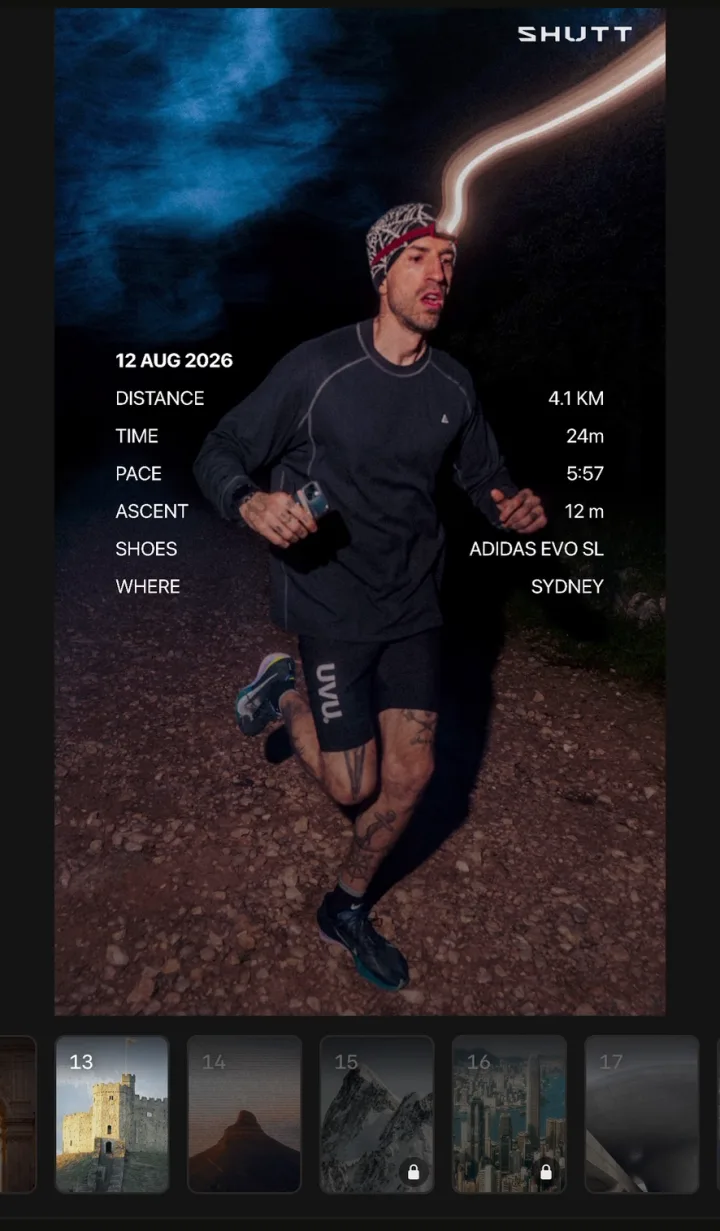
- Drag, resize or restyle any block, or leave the defaults.
- Save it to Photos or share it.
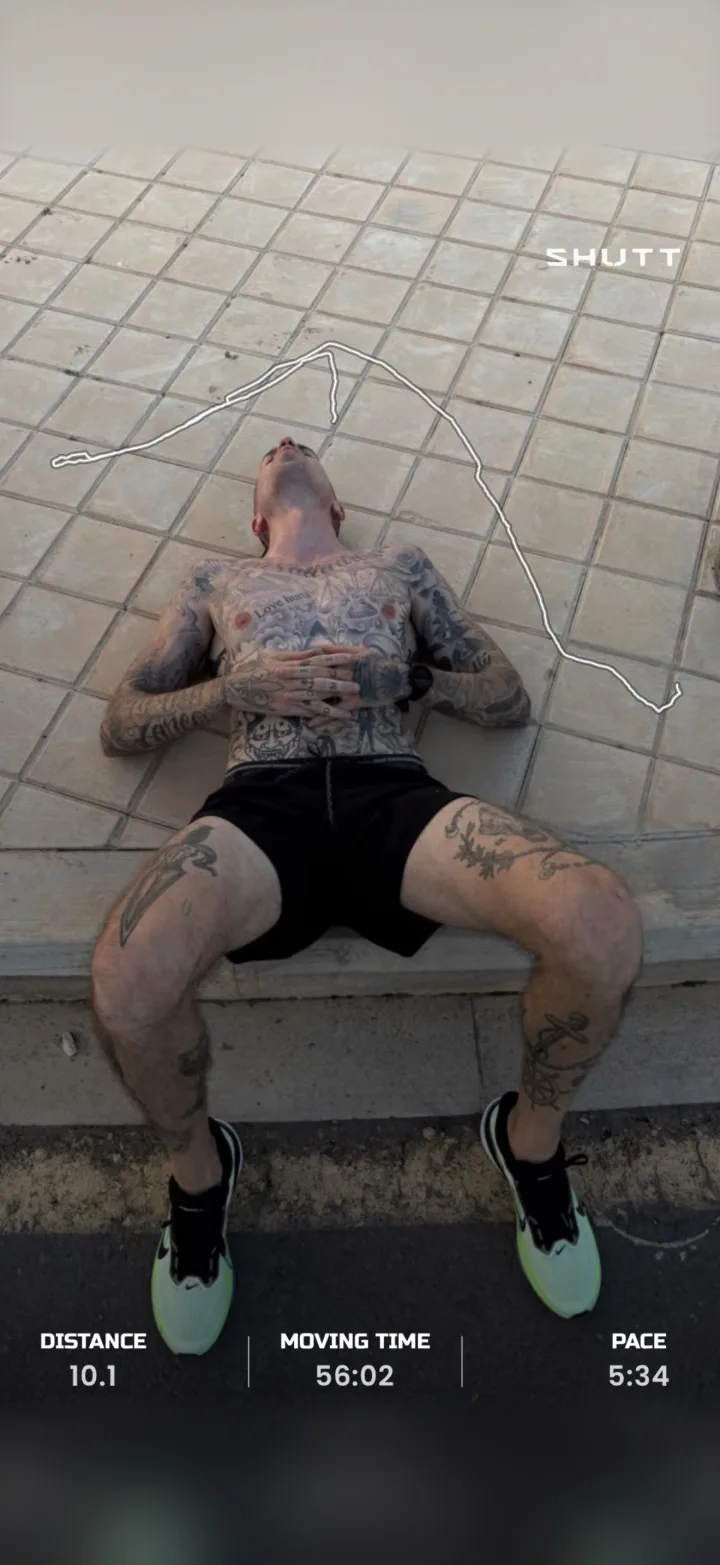
The features page lists what it covers.
Other apps exist with different trade-offs; this comparison goes through them.
Step 4: Export at the right size
A wrong size means black bars or a cropped head.
| Where | Ratio | Pixels |
|---|---|---|
| Instagram Stories and Reels | 9:16 | 1080 x 1920 |
| Instagram feed post | 4:5 | 1080 x 1350 |
| Square feed post | 1:1 | 1080 x 1080 |
| TikTok | 9:16 | 1080 x 1920 |
Shoot vertically when you can. A vertical photo fills a Story and crops cleanly to 4:5 for the feed. In SHUTT the same edit exports as Story (9:16), Post (4:5) or Square (1:1), so one run can go to both places without being rebuilt.
Step 5: Keep the style consistent
Consistency is what makes a feed recognisable. It is also the easiest part, because you decide once.
Type
- One or two typefaces at most. A bold face for the main number, a lighter weight for labels and date.
- Readability first. If "5:12 /km" is hard to read at a glance, change the font.
- Numbers need even spacing. Condensed or tabular figures keep pace and time tidy.
Colour
- Pick one accent colour and keep it. Use it for one element, not all of them.
- White text works on most photos with a soft shadow behind it.
- Keep to two or three colours per image.
Contrast
Bright sky and white text do not mix. Fix it with a soft dark shadow, a dark gradient at the bottom of the frame, or by moving the stats onto a darker part of the photo. Avoid light veils over the photo; they wash it out.
Reuse one design
Pick a layout you like and use it for every run: same type, same colour, same position for the route. People start recognising your posts before reading them. In Canva that means saving a template; in an app it means picking the same look.
Step 6: Share it
- Stories are for today's run. Post within a few hours so it still feels current.
- Feed posts are for runs that matter: races, firsts, a new place. Write a real caption; the stats are in the image, the story goes in the text.
- Hashtags: a few relevant ones beat a long list. Mix one broad tag with one or two specific to your city, club or race.
- Reply to other runners. Running accounts grow through replies and shares, not just posting.
For the full Instagram walkthrough, including Reels, see how to share Strava runs on Instagram. For Story layouts you can copy, see Strava Instagram Story templates.
Which tool fits you?
| Strava share | Canva | Photoshop or Lightroom | SHUTT | |
|---|---|---|---|---|
| Uses your own photo | Yes | Yes | Yes | Yes, and video clips |
| Stats typed by hand | No | Yes | Yes | No |
| Route on the image | Yes | Screenshot only | Screenshot only | Yes, 49 line styles or a map |
| Time per post | Under a minute | 10 to 15 min | 20 min or more | About a minute |
| Design control | Low | High | Full | Finished looks, fully editable |
| Platform | iOS and Android | Web and mobile | Desktop and mobile | iPhone only |
| Cost | Free | Free, paid tier | Paid | Free, with optional Pro |
SHUTT Pro removes the small mark on free exports and opens premium looks, heart-rate stats, Apple Maps routes and transparent export.
Key takeaways
- Start with a real photo. Soft light, clean lens, space left for the numbers.
- Show two or three stats. Pick them for the run, not for completeness.
- Put them on the photo in clean type. By hand in Canva, with Strava's share, or with an app that reads Strava.
- Export at 9:16 or 4:5. Do not let Instagram crop it for you.
- Decide your style once. Same type, colour and layout every time.