Short answer: there are four ways to put your stats on a running photo: share from Strava to Instagram Stories with a photo behind the stats, type them on with iPhone Markup or Instagram's text tool, fill in a Canva template, or use an app that reads the activity from Strava and lays out the numbers for you. The first three are free and manual; the last one removes the typing.
I tried all of these before building an app for it. Here is what each is good for.
| Method | Time | Stats typed by hand | Route on the photo | Your own design |
|---|---|---|---|---|
| Strava's share | Under a minute | No | Yes | No |
| iPhone Markup | 2 to 3 min | Yes | No | Basic |
| Canva template | 5 to 15 min | Yes | Screenshot only | Yes |
| Overlay app (SHUTT) | About a minute | No | Yes | Yes |
Method 1: Strava's own share
Strava can share an activity to Instagram Stories with your stats laid over a photo or the route map.
- Open the activity in Strava.
- Tap the share icon.
- Choose Instagram Stories and pick a photo or the map as the background.
- Post from Instagram.
Verdict: the fastest free option, and the numbers are exact. The layout and type are Strava's, so it looks like every other Strava share, and it is built for Stories. If you want a 4:5 feed post or your own look, use one of the methods below.
Method 2: iPhone Markup
Apple's Markup tool is in the Photos app already.
- Open your running photo in Photos.
- Tap Edit, then Markup.
- Add a text box.
- Type your stats on one line, for example: 10.2 km · 4:52 /km · 49:38.
- Set the size and colour. White usually works.
- Drag it to the bottom-left or bottom-right corner.
- Tap Done and share.
Verdict: quick, free, and rough. No route, a fixed set of fonts, and you type every number. At some point you will post the wrong pace. Fine for a fast Story; not for a feed you care about. Instagram's own text tool does the same job inside the Story editor.
Method 3: A Canva template
A step up in looks.
- Search Canva for "running story" or "fitness stats" templates.
- Pick one with placeholders for distance, pace and time.
- Swap in your photo as the background.
- Replace the placeholders with your stats from Strava.
- For the route, screenshot the Strava map, crop it and place it.
- Adjust colours and fonts, then export as PNG.
Verdict: looks far better than Markup and works in any format. You still type every stat, and the route is a cropped screenshot, which tends to look pasted on. Good for one-off posts; tiring for every run. Save your own design as a template so the next one takes five minutes instead of fifteen.
Method 4: An app that reads Strava
This is the problem I got tired of: screenshot, crop, paste, type, check the pace, export. So I built SHUTT, an iPhone app that does the whole thing from the Strava activity.
How it works
- Connect Strava once. You sign in with Strava. After that your activities appear on their own. SHUTT only reads them; it never changes anything in your Strava account.
- Open an activity. Any run, ride, hike or walk from Strava, recorded on any watch that syncs to it.
- Pick a photo or a video clip from your camera roll.
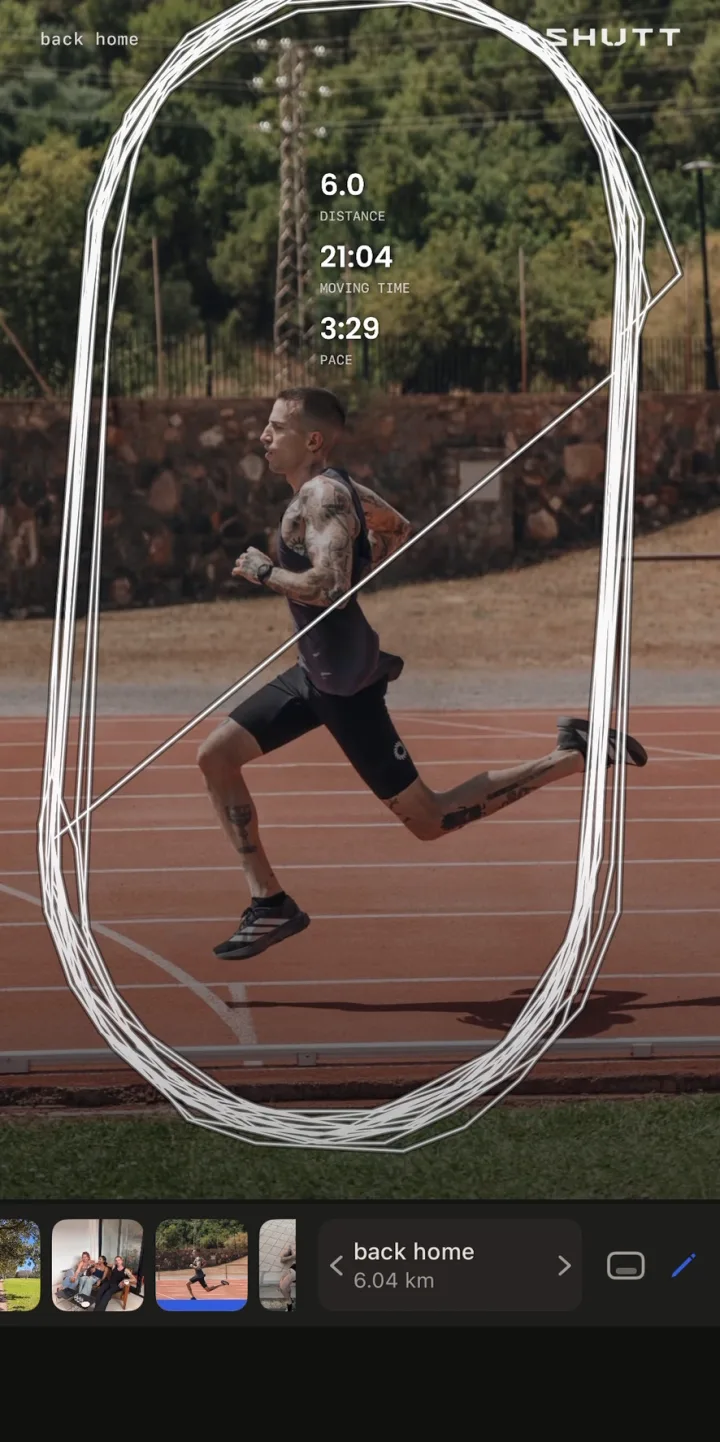
- Pick a look. There are 33. Each is a finished design with a name, not a template with blanks. "Silver", for example, engraves the run on a steel plate that reflects your photo. The stats are already filled from Strava.
- Adjust if you want. Every block drags, resizes and snaps. There are 28 typefaces, and colour, weight, spacing and shadow can be changed per element. The defaults are meant to be good as they are.
- Export as Story (9:16), Post (4:5) or Square (1:1). Save to Photos or share to Instagram Stories.
What it can put on the photo
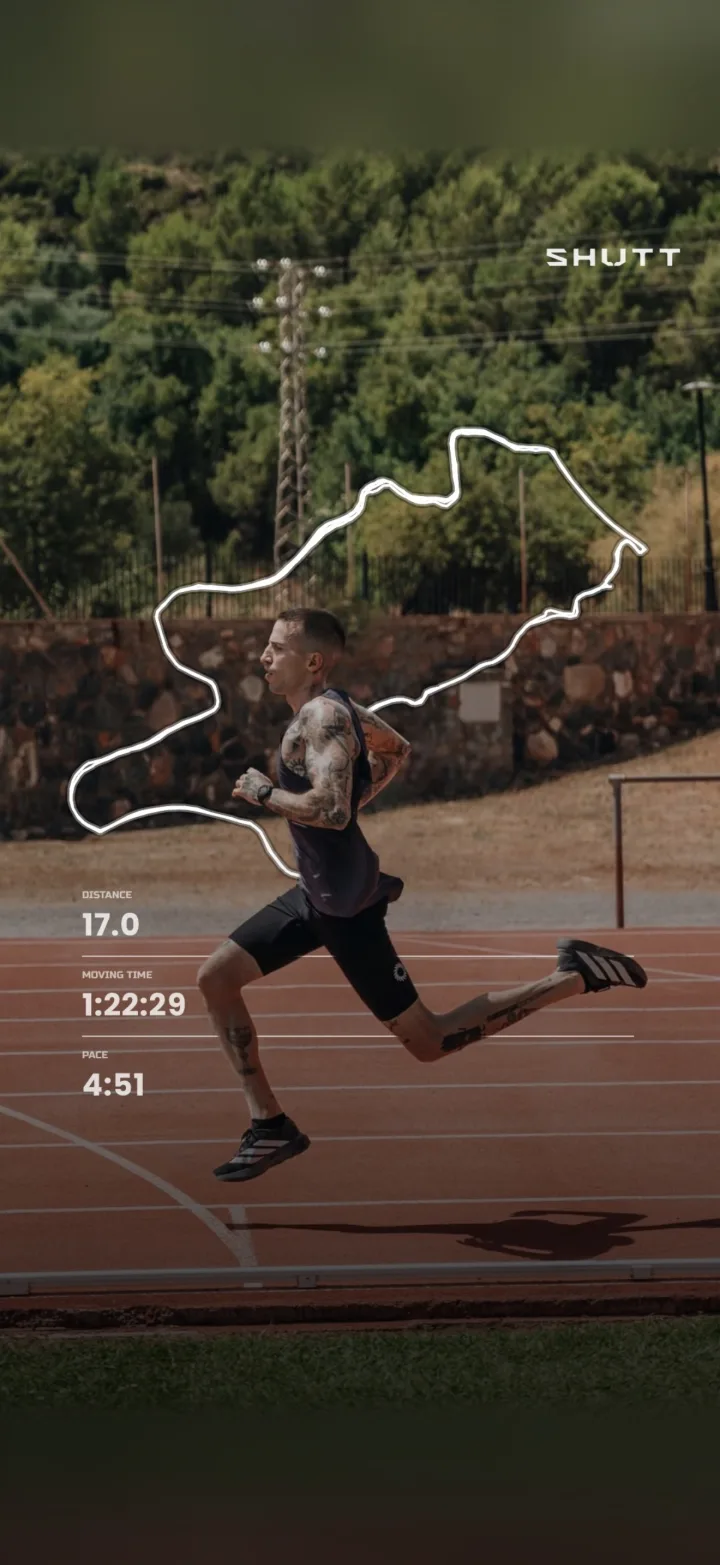
- More than 30 stats: distance, pace, moving time, splits, heart rate and zones, elevation, cadence, calories, weather, shoes, and the song you were listening to on Spotify.
- The route, drawn over the photo in one of 49 styles, or a map under it.
- The same looks on video clips, keeping the brightness and colour you filmed.
The full list is on the features page.
Free and Pro
SHUTT is free to download and use. Free exports carry a small SHUTT mark. SHUTT Pro removes the mark and opens premium looks, heart-rate stats, Apple Maps routes and transparent export. Pro is monthly, yearly or a one-time purchase.
Verdict: no typing, so no wrong paces, and a designed result in about a minute. It is iPhone only. If you are on Android, Methods 1 and 3 are your options; this comparison covers other tools.
Which method fits you?
- You share a few runs a month. Canva or Markup. The manual effort is small at that volume.
- You share most runs and want them to look consistent. An app that reads Strava. The time saved adds up, and the same look every time makes your feed hang together.
- You want it out in one minute. Strava's share.
- You want a fully custom one-off. Canva, with the stats checked twice.
Tips for any method
Show fewer stats
Pick the two or three that tell this run's story. A sunrise easy run: distance and pace. A race: finish time and splits. A trail day: elevation and distance.
Get the contrast right
White text on a bright sky disappears. So does dark text on a shaded trail. Put the stats over a darker part of the photo, add a soft dark shadow, or a dark gradient at the bottom of the frame. Avoid light veils over the photo; they wash it out.
Keep the photo the hero
Put stats in the bottom third, or wherever the photo is empty. On Stories this also keeps them clear of your name at the top and the reply bar at the bottom.
Match your feed
If your photos are warm and muted, neon stats will fight them. Pick one accent colour and one or two typefaces, then keep them.
Show the route when it is interesting
The same out-and-back street every day is not much to look at. A loop through a new city, a coastal trail or a race course is. Use the route when it adds to the story.
Related guides
- How to make your Strava photos look good: shooting, choosing stats and styling.
- Strava Instagram Story templates: four Story layouts you can copy.
- How to share Strava runs on Instagram: Stories, feed posts and Reels.