SHUTT puts your run club on a run photo in three ways: two club looks built around the club (a logo over the photo, or a glass member card with your stats), three club blocks you can add to any other look, and a Club stat that sets the club's mark or name inside the look's own stats. All of them use the club's real logo and colours, and all of them export as an Instagram Story, a feed post or a square.
How to find and add a club in the first place is in Run clubs in SHUTT.
What are the two club looks?
Once you have added a club, two looks join the rail at tiles 04 and 07, each with your club's logo on its tile.
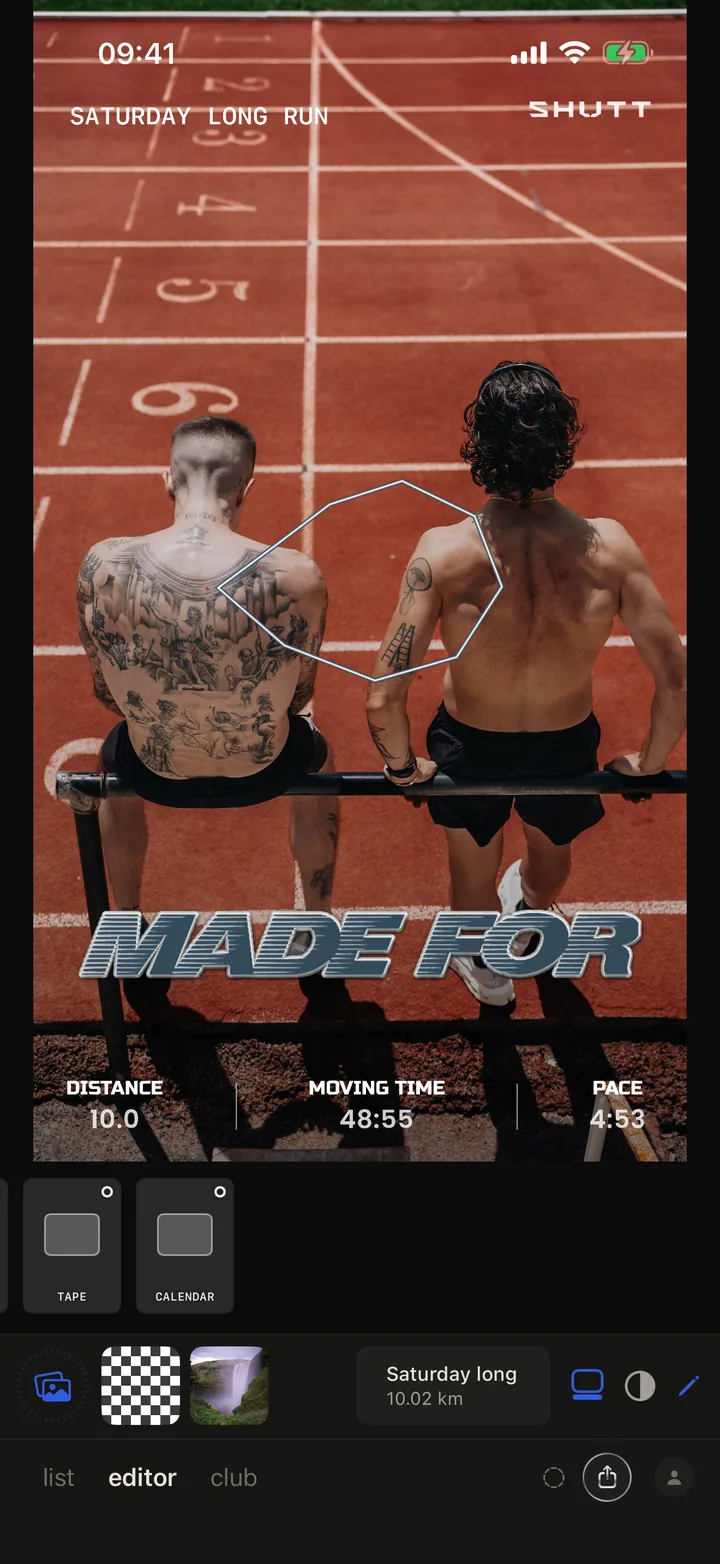
Club logo (04) is a classic stats row (distance, moving time, pace) low on the photo, with your club's mark centered just above it and the run's title and route on the picture.
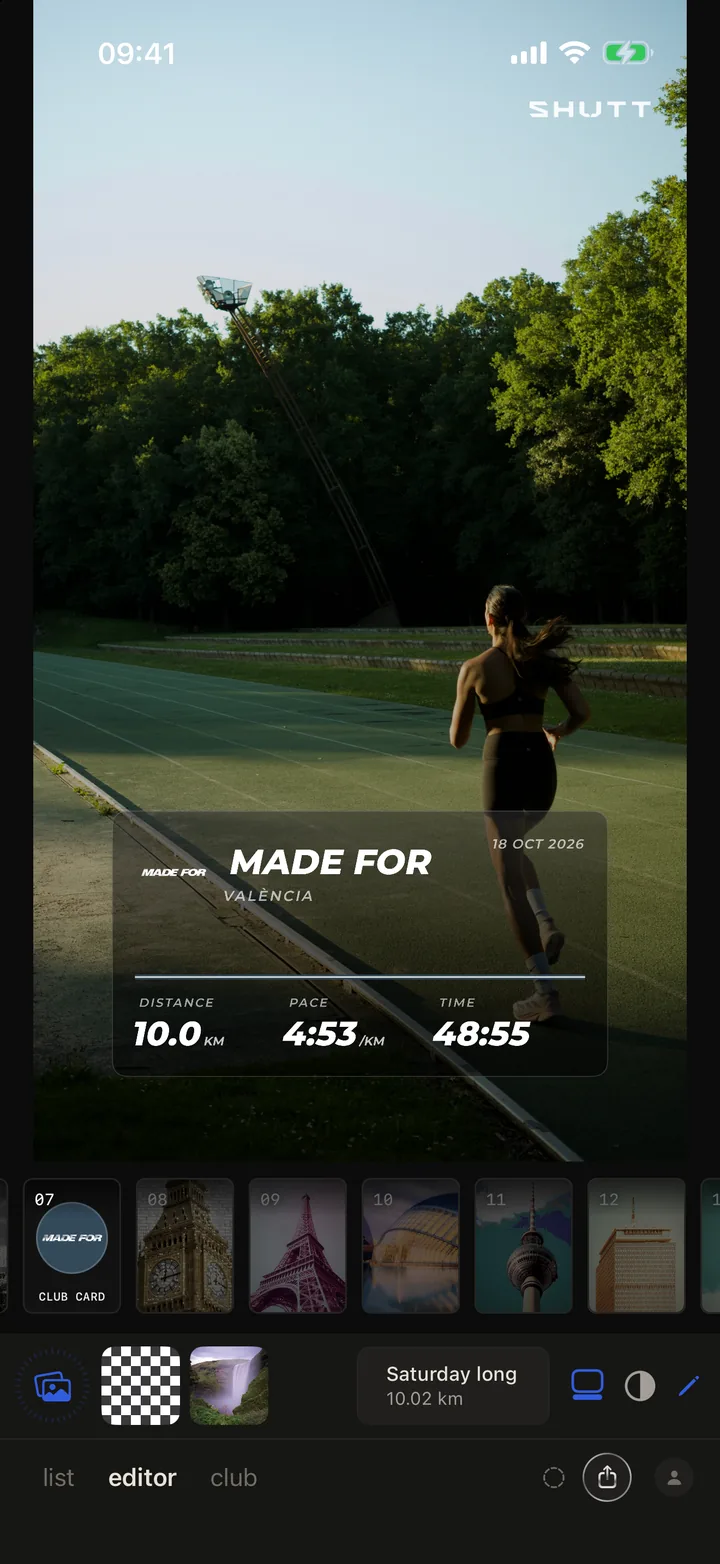
Club card (07) puts a smoked-glass member card low on the frame and leaves the rest to the photo. The card carries the club's mark, its name and city, the date, and your distance, pace and time, set in the club's own typeface when SHUTT has one for it. It shows only real data: there is no invented member number.
What can you change on a club look?
Tap the pencil on either club look and a small panel opens with:
- CLUB / WHITE, two pills. Both looks start on CLUB.
- Your clubs as a row of logos. Tap one and the look wears that club.
- ADD A CLUB, which takes you to the club tab.
What CLUB actually paints is the route. Measured on real photos, most club colours were hard to read as text, while a route line with an outline held up for every club, so the type stays white and the colour goes on the line. Clubs fall into two kinds: if the club's colour is bright enough to draw with, the route takes it; if the colour is a dark ground under a white logo, the route stays white and the colour becomes its outline. On the card, CLUB also colours the rule above the stats.
Every club block on the photo is an ordinary block. Drag it to move it, pinch it to resize it (there is no size slider), and use the style button on its toolbar to cycle its styles. The styles depend on the block:
| Block | Styles |
|---|---|
| Logo | Eight: a die-cut sticker with a white border, die-cut with a border in the club's colour, holographic foil, the logo in its own colours, white, black, a keyline outline, and chrome |
| Name | Six: white ink, smoked glass, the club's colours, the logo in its own colours, black, and a thin outline |
| Card | Two: smoked glass, or the club's own colour as the ground |
How do you add your club to any other look?
You do not have to use a club look. There are two routes onto any look.
The club tab in the editor. Open the pencil, then club. It shows your clubs (your main one starred, with an Add club button at the end), then three tiles, one tap each to put a block on or take it off:
- Logo: the club's mark on its own.
- Name: the mark beside the club's name and city, in the club's type.
- Card: the full member card with your stats.
Below them is the Club colour chip, off until you turn it on, which colours the route the same way CLUB does. It works with or without a club block on the photo.
The Club stat. In the Stats panel, switch on Club, then open its row. You get a pill with your club's logo and name (tap it to step to your next club), and two chips, one for the mark and one for the name. At least one stays on. In a plain stats row the mark sits as one more column; when the row is full, when the mark is a long wordmark, or when you turn the name on, the club gets its own line under the numbers instead.
Some looks go further and set the club in their own design: one gives it a cell labeled CLUB, the ledger-style ones add a line with the mark and the name, and one closes its gear line with the mark. The mark is tinted to match the look's own type.
If your run matches one of your club's events on Strava, the event can go on the photo as a row with the club's name and the event's title. It is on by default when you joined the event; otherwise the club tab offers ADD EVENT.
What happens when your club has no logo?
The clubs SHUTT curates usually come with a transparent logo and a white version of it, which is what the white, black, outline and chrome styles need. Other clubs fall back in steps:
- A Strava club SHUTT has not curated uses its Strava profile picture as a round badge. The logo block then offers only the four badge styles (sticker, club-colour border, holographic and plain), because the other four trace a logo's outline and a square photo has none.
- A club with no picture at all gets its initials, in its own type and colours, on the logo, name and card blocks. Type, never a stock icon.
- Looks that draw the club in their own type leave the mark out rather than print initials. Turn on the name chip in the Club stat so the club still shows.
If your club is missing or has no logo, suggest it from the plus in the club tab. Logos are added by hand.
Story, Post or Square?
Club looks and blocks export at all three formats: Story (9:16) for Instagram Stories, Post (4:5) for the feed and Square (1:1). A shorter frame leaves less room above and below, so after switching, look again and drag the card or logo if it sits too close to an edge.
How to add or switch your club
- Open the club tab at the bottom of the app and tap Add on your club. Tap the star to make it your main club.
- Open a run in the editor and pick a photo.
- Swipe to 04 or 07, or keep your look and add a block from the pencil's club tab.
- Switch clubs by tapping another logo in the club tab or the club look's pencil. Starring a club in the club tab also makes it the one your photos wear.
- Share to an Instagram Story or save to Photos.
Run club post ideas that suit each option
- Group shot after the club run: Club logo, with the mark over sky or track rather than across faces.
- Solo photo from a club session: Club card, so the club is the caption and you are the picture.
- Your own look, every week: add the Club stat, so the club rides along on every run without changing your style.
- The club's event day: ADD EVENT, so the photo says which run it was.
For the photo itself, see how to make Strava photos look good. SHUTT is on iPhone only.