SHUTT has a club tab that opens on the run clubs in your city, and once you add your club, two looks put its logo, name and colour on your run photo: a logo over the picture, or a club card with your stats. You can also add the club's logo or name to any other look from the editor, so your club shows up on every run you post.
This post covers how to find a club, how the club ends up on the photo, and how it compares with what Strava's clubs do.
What do Strava clubs offer for this?
Strava clubs are where most clubs already live, and they are good at the club side of things. At the time of writing (October 2026), Strava's help centre describes club posts, which show up in members' home feeds, and a club event flyer: a graphic built from an event's details, with the club's profile photo, its banner as the background and the route line if there is one, ready to post to an Instagram Story. Strava's article says the flyer cannot be edited once it is made.
What Strava's activity sharing page does not mention is your club on your own run. The image it shares carries your map or a photo with moving time, distance and pace. So the Story you post after the Saturday club run says nothing about the club.
That gap is what the club features in SHUTT, the app I make, are for. They read the clubs you are in from Strava, so nothing is set up twice.
How do you find a run club in your city?
The club tab sits in the bar at the bottom of the app, next to list and editor. It opens on your city, which it works out quietly from where your runs start. Only when that fails does it ask, and then only for an approximate location, with your own city list as the alternative.
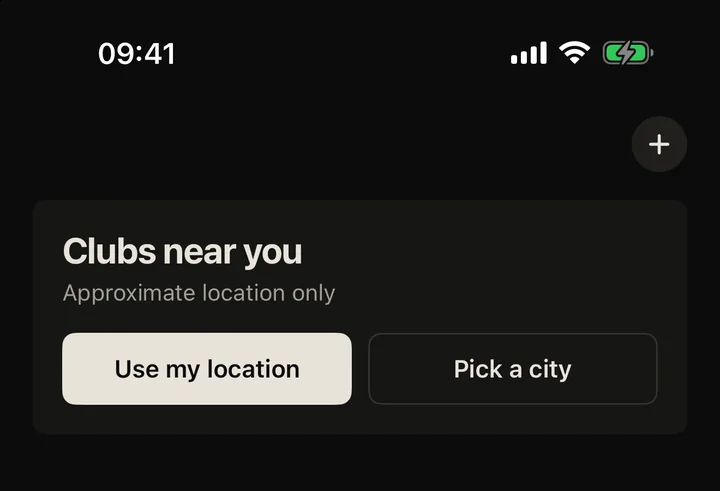
Each city has a short, hand-curated list of clubs, with local crews ahead of brand-run ones. A city appears only once it has at least three, and at the time of writing there are more than 25 cities and more than 140 clubs, with five in València, where SHUTT is made.
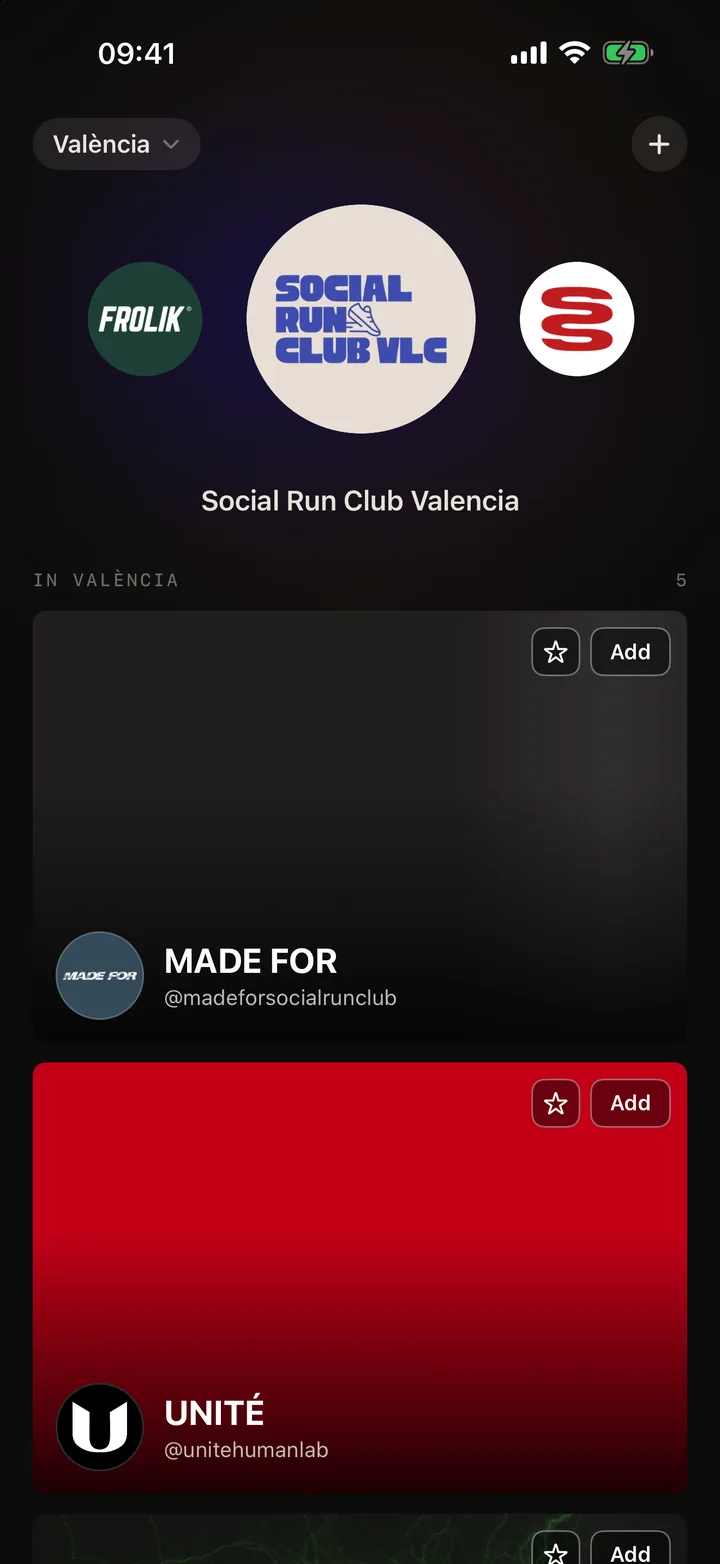
What you see on the tab:
- A strip of logos across the top, the city's clubs first. Tap one to open the club.
- One card per club, with its cover photo, name and Instagram handle.
- Add on each card, to make it one of your clubs, and a star to make it your main club. Both apply the moment you tap; if a change does not save, it is put back and the tab says so.
- From your Strava: the clubs you already belong to on Strava. A curated one opens its page; one SHUTT has not curated yet opens on Strava.
- The plus in the top corner, to suggest a club that is missing, with its name, Instagram and Strava.
Opening a club shows a sheet with its description, its next event when Strava has one, links to its Instagram and its Strava club, and a Try it on button that takes you straight to the editor wearing that club.
How does the club get onto your photo?
Once you have added a club, two club looks appear in the looks rail, at tiles 04 and 07, with your club's own logo on the tile. Until then, the rail is exactly as it was.
- Club logo (04) is the classic stats row with your club's mark set over the photo above it.
- Club card (07) puts a glass member card low on the frame: the club's mark and name, the city, the date, and your distance, pace and time.
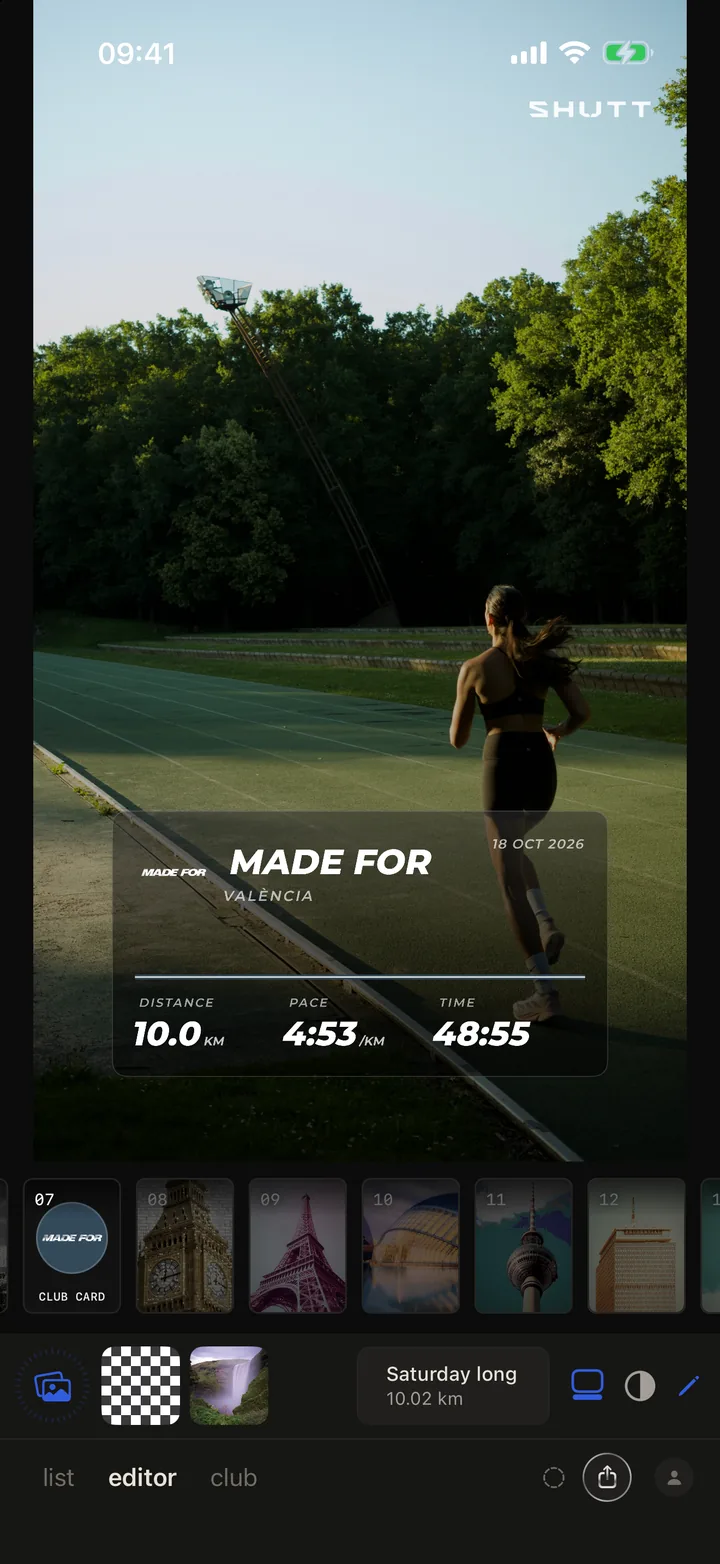
Both looks start in the club's colour, and the pencil switches them between CLUB and WHITE. The mark is the club's real logo, never a stand-in, and the card is set in the club's own typeface where the club has one.
You do not have to use a club look to show your club. In the editor, the club tab has three blocks you can add to any look with one tap each:
- Logo, the club's mark on its own.
- Name, the mark beside the club's name and city, with a few styles to switch between.
- Card, the full member card with your stats.
The same tab lets you switch between your clubs, and has a Club colour chip that draws your route in the club's colour. It is off until you turn it on. Every club block can be moved and resized like any other block, so it can sit where the photo has room.
How to do it in SHUTT
- Sign in with Strava, if you have not already. The club tab is there for every signed-in athlete.
- Open the club tab and check the city at the top. Tap it to pick another.
- Tap Add on your club, and the star if it is your main one. Not listed? Look under From your Strava, or tap the plus to suggest it.
- Open the editor on your run and pick a photo. Swipe the looks rail to 04 (Club logo) or 07 (Club card).
- Or keep your favourite look and open the pencil, then the club tab, and add the Logo, Name or Card block.
- Drag the club block where the photo has space, then share to an Instagram Story or save to Photos.
A tip on choosing between them: on a group photo, the Club logo look reads best with the mark over an empty patch of track or sky, not across people. On a solo shot, the card works better, because the club is the caption and the run is the picture.
Why put the club on the photo at all?
Because a club run is a shared thing, and a Story that only says 10 km leaves out the people you ran it with. A club mark on members' Stories also tells everyone who sees them where to find the club, and nobody at the club has to set anything up: members do it from their own phones.
For more on the kind of photo that works, the guide to making Strava photos look good covers light and framing, and how to share Strava runs on Instagram covers every way of posting the result. The features page has the rest of what SHUTT does. SHUTT is on iPhone only.