Strava's share stickers are white type on a transparent background, and at the time of writing (November 2026) Strava's help pages list no option to change the text colour. So the fix happens in Instagram: put the sticker over the darkest part of the photo, or draw a see-through dark band under it with the highlighter, or retype the numbers with a coloured text background.
None of these cost anything. Below is each one step by step, which suits which photo, and when it is worth reaching for an overlay app instead.
Why does the Strava sticker disappear on bright photos?
Runners in r/Strava started seeing new share stickers in late September 2026, and on 27 October it announced that "Fresh Strava Activity Stickers are here, free for everyone" (Strava, What's new). Its help article on transparent stickers, read on 10 November 2026, says three things that explain the problem:
- Transparent stickers are the ones with the checkered background in the share screen.
- Strava does not add the background photo. You add it in Instagram.
- The sticker carries your stats or your map over whatever photo you choose.
The article does not mention a text colour, a black version or a light and dark choice, and neither does Strava's main sharing article. That one also says the stats are fixed: for a run, moving time, distance and pace.
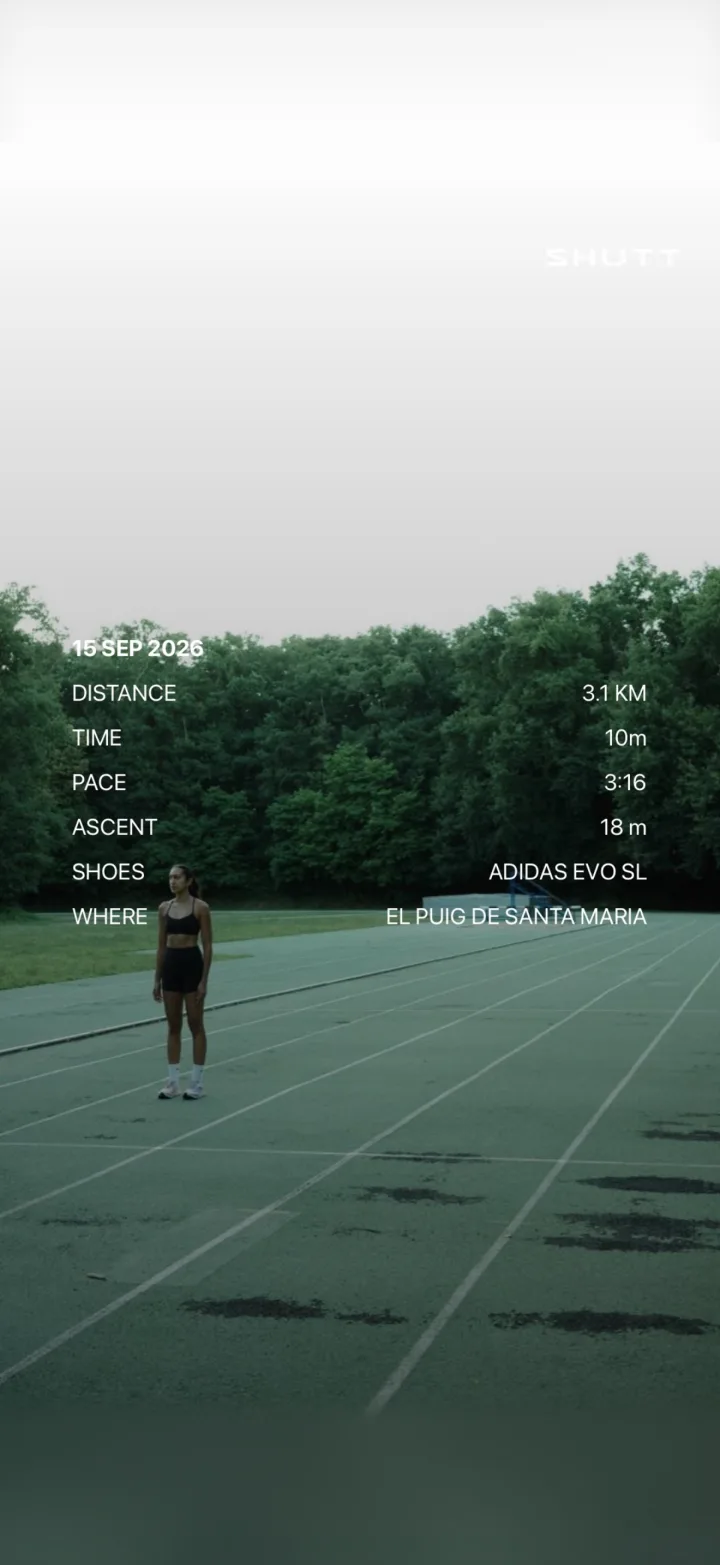
So the numbers are always light, and the photo underneath decides whether you can read them. On a sunny sky, snow, a beach or a pale track they vanish. Runners noticed straight away: on 1 October 2026, two r/Strava threads asked for exactly this, one titled "New activity sharing stickers are impossible to read on bright backgrounds" and another asking when the text colour could be changed to black.
What are the free fixes?
| Fix | Best for | Effort | Changes the look |
|---|---|---|---|
| 1. Move the sticker onto a dark area | Photos with any shadow, ground or trees | 5 seconds | No |
| 2. A dark band with the highlighter | Bright photos with no dark area | 30 seconds | A little |
| 3. Dim the whole frame | Snow, beach, white walls | 15 seconds | Yes, the whole photo |
| 4. Retype the numbers with a text background | When you want one big number | 1 to 2 minutes | Yes, your own type |
| 5. Pick or crop a different photo | Before you post | Varies | No |
1. Move the sticker onto the darkest part of the photo
This is the fix to try first, because it keeps the photo as it is.
- In Strava, open the run, tap share and pick the transparent sticker for Instagram Stories.
- In Instagram, choose your photo as the background.
- Drag the sticker onto the darkest area: the road, a shadow, trees, a dark top.
- Keep it clear of the top and bottom edges, where Instagram's own buttons sit.
Most running photos have a dark lower third (the ground) and a bright upper third (the sky). The sticker belongs low.
2. Draw a see-through dark band under it
When the whole photo is bright, give the numbers their own background.
- In the Story editor, before adding the sticker, open the draw tool.
- Pick black and choose the highlighter brush. Instagram describes it on its Story tips page as a see-through overlay.
- Turn the size slider up and draw one or two wide strokes where the sticker will sit.
- Paste the sticker over the band.
A dark band behind white type reads far better than any text colour change would, and it keeps the photo visible through it. Avoid a white or light band: it washes the photo out and still fights the white numbers.
3. Dim the whole frame
On snow or a beach there may be no good spot for a band. Instagram's tips page says that with the highlighter selected, pressing on the screen fills it with a see-through tint. In black, that dims the whole photo evenly, and the white sticker on top becomes readable anywhere. It is a heavier change, so use it when the photo is mostly sky or snow anyway.
4. Retype the numbers with a text background
If you only care about one number, say the distance of a long run, type it yourself. Instagram's Story editing help says you can pick the text colour from the circles at the bottom of the screen, and add a colour background to text by tapping Background at the top. Black text, or white text on a black background, reads on any photo. You can also pinch text with two fingers to resize it, so the number can be as big as you like.
The cost is effort: you are copying numbers by hand for every run, and a typo is easy. It works best combined with the sticker, which carries the other stats.
5. Choose a photo with somewhere dark to put the stats
The most reliable fix happens before you open Strava. When you take or pick the photo, leave a darker area for the numbers: shoot slightly down so the road fills the bottom, or frame the runner against trees rather than sky. If you already have the photo, crop it so a dark area sits where the stats will go. For more on framing, see how to make your Strava photos look good.
Can you change which stats the sticker shows?
Only by removing them. Strava's sharing article says it shares moving time, distance and pace for runs, and its sticker article says stats you have hidden on an activity do not appear on the sticker. So hiding a stat on the activity drops it from the sticker, but you cannot add others or change their colour. If the share options are missing altogether, see why a Strava activity won't share to Instagram.
When is an overlay app worth it?
The free fixes work, but you repeat them for every run, and the sticker always shows the same three numbers in the same layout. Overlay apps that read your run from Strava put the stats on your photo themselves, with control over position, type and what sits behind the numbers. I compared the options in the best Strava overlay tools.
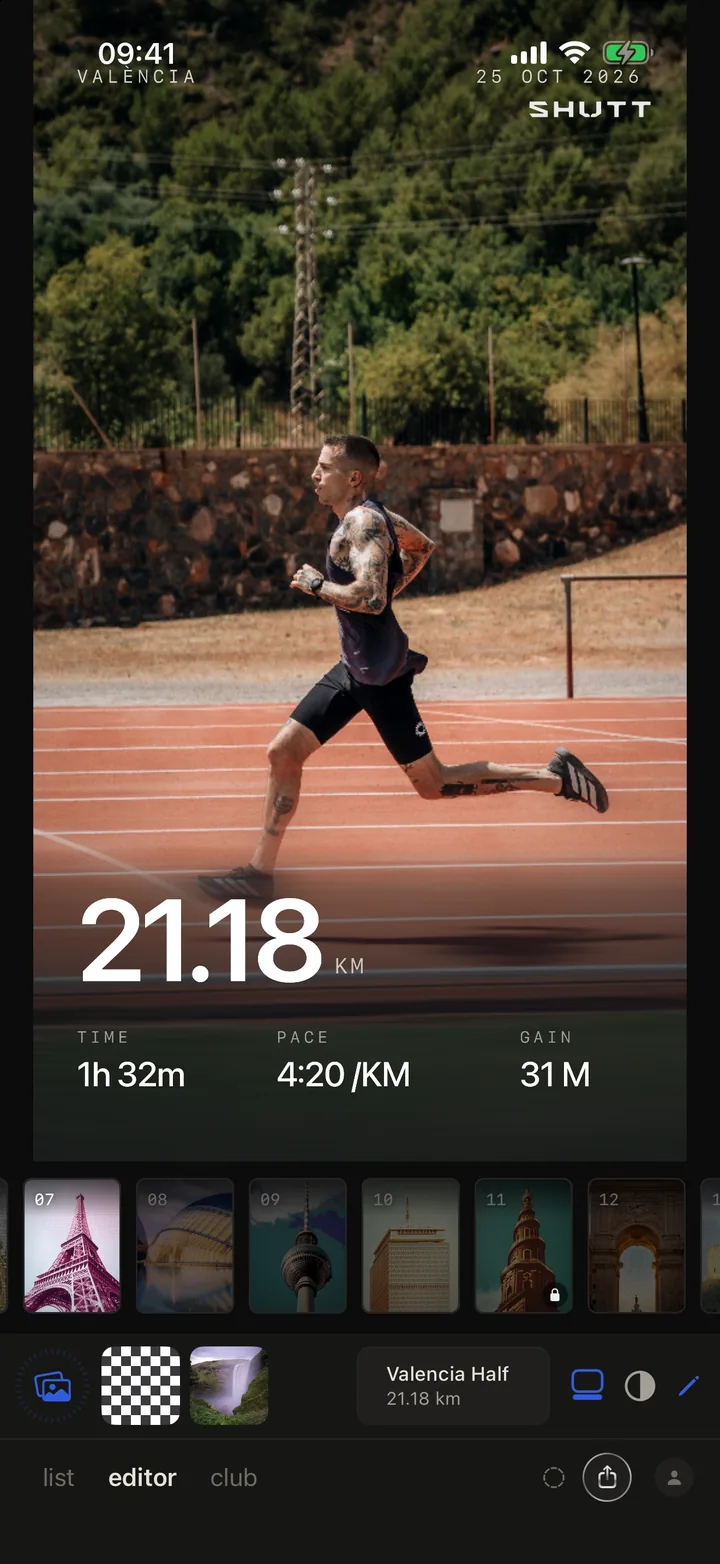
One of them is SHUTT, which I make (iPhone only). Many of its looks draw a dark gradient behind the stats, and the Shade button in the editor (the half-filled circle next to the pencil) sets how dark it is, from none to twice the look's own amount. You can also tint the stats with colours taken from your own photo. Distance, pace, splits, elevation and the route are free; free exports carry a small mark.
Quick checklist for a readable Strava sticker
- White numbers need something dark behind them: ground, shadow, trees or a band you draw.
- Put the sticker in the lower part of the frame and away from the edges.
- Use a black, see-through band, never a white one.
- If one number matters most, type it large with a text background.
- Check the Story on your phone at arm's length before posting. If you squint, it is too faint.
For sizes and the areas Instagram covers, see Strava Instagram Story templates.