To show splits, heart rate or elevation on a running photo, pick the one or two stats that tell the story of that particular run, then either crop them from a Strava screenshot into an editor like Canva, or use an app that reads the activity and draws them over the photo. Keep it to three or four numbers in total so they stay readable on a phone.
The hard part is not the tool. It is choosing which stats to show and making them legible at Story size.
Which stat suits which run?
Every run has one number that explains it. Lead with that one, and add two or three supporting stats at most.
| Run type | Best stats | Why |
|---|---|---|
| Intervals or track session | Splits for the reps, average pace of the reps | The session is the reps. Total distance hides the work. |
| Long run | Distance, elevation gain, moving time | Distance is the achievement; elevation explains why the pace was slower. |
| Race | Finish time, average pace, date | Time is what people ask about. Pace and date make it a record. |
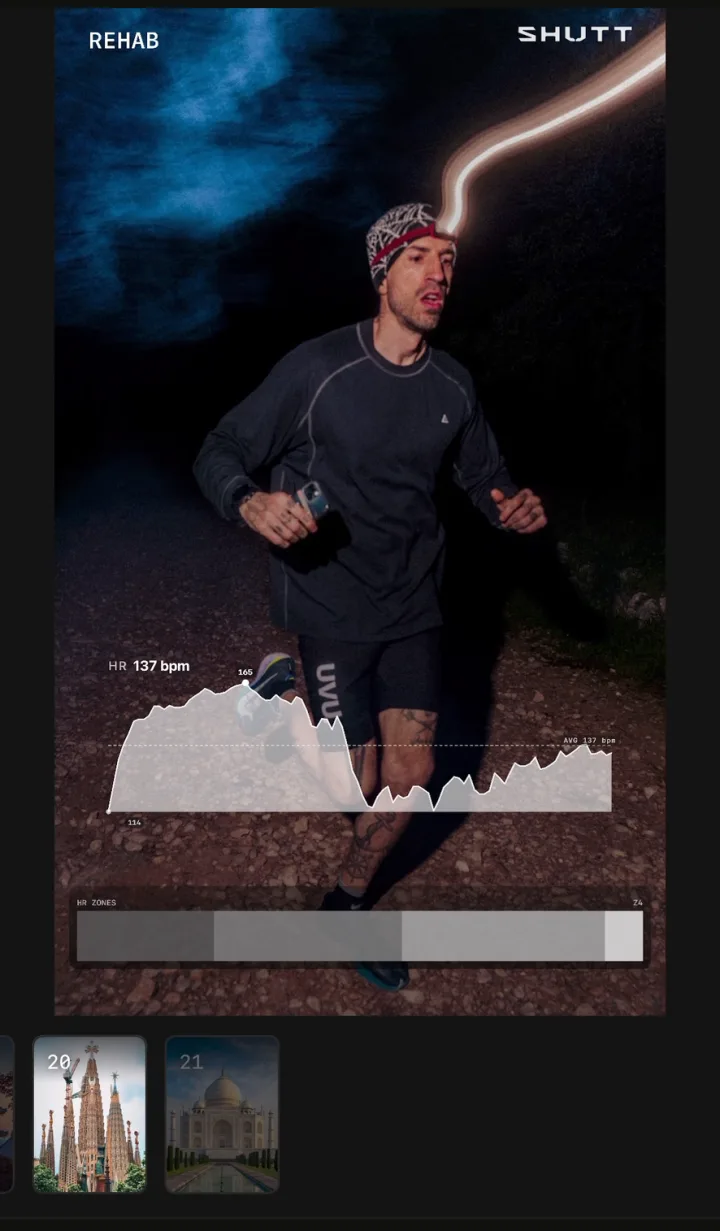
| Easy or recovery run | Heart rate zones, average heart rate, distance | It proves the run was easy, which is the whole point. |
| Hill or trail run | Elevation profile, elevation gain, distance | The shape of the climb says more than any pace. |
A few notes on that table:
- Intervals: show only the work reps, not every 1 km split including the warm-up. Six reps of 800 m at 3:20/km reads clearly. Twelve rows mixing warm-up, reps and cooldown does not.
- Long runs: elevation gain of 400 m on a 25 km run is the reason the pace was 5:40/km and not 5:10/km. Put it next to the pace and nobody has to ask.
- Easy runs: a run at 5:50/km looks slow out of context. "82% in zone 2" looks disciplined. Heart rate turns the easy day into the right day.
How do you read these stats before you design with them?
Splits
Splits are your pace for each kilometre or mile. A flat line of splits means even pacing. Splits that get faster towards the end are negative splits, which is usually what a good race or long run looks like. When you show splits, the shape matters more than any single number, so a small bar chart often reads better than a list.
Heart rate and zones
Average heart rate alone means little to anyone but you, because it depends on age and fitness. Zones are easier to read: they show how much of the run you spent at each effort level, usually in five bands. For an easy run, the share of time in zones 1 and 2 is the useful number.
Elevation
Elevation gain is the total climbing in metres or feet. The elevation profile is the shape of the route from the side. Gain is a number; the profile is a picture. On a hilly route, the profile is often the most striking element on the image.
How do you keep them legible on a phone screen?
A Story is seen at arm's length for two or three seconds. Design for that, not for a desktop monitor.
- Limit yourself to three or four stats. Every extra number makes the others harder to find.
- Make the key number big. On a 1080 x 1920 Story, the headline value should be at least 80 pixels tall. Labels can be a third of that.
- Use contrast, not colour. White on a dark area of the photo, or dark on a light area. If neither exists, add a dark scrim or a soft shadow under the text. A light veil over the photo washes it out.
- Use tabular figures if your font has them. Splits in a column line up only when every digit is the same width.
- Round sensibly. Pace to the second (4:52/km), distance to one decimal (21.1 km), elevation to the metre. Two decimals on distance is noise.
- Respect the safe zones. Keep stats out of roughly the top and bottom 250 pixels of a Story, where Instagram puts your name and the reply bar.
- Leave the photo at least 80% of the frame. The stats are a caption, not the subject.
How do you get them onto the photo manually?
The free way uses Strava screenshots and an editor. Canva works well; Instagram's own text tool is fine for single numbers.
- Open the activity in Strava and screenshot the parts you want: the splits table, the heart-rate zones, or the elevation chart.
- Open Canva and create a 1080 x 1920 design for a Story or 1080 x 1350 for a 4:5 post.
- Place your photo as the background, filling the frame.
- Import the screenshot and crop it tightly to the table or chart you need.
- Remove the background of the crop if your Canva plan allows it, or put the crop on a dark rounded box so the edges look intentional.
- Retype the headline numbers as real text in your own font, so the biggest stat is not a blurry screenshot.
- Export as PNG and post.
This takes 10 to 15 minutes. The limits: screenshots carry Strava's fonts and chart colours, they go soft when you scale them up, and heart-rate zone screens often need two screenshots to capture everything. The overview of stats overlay methods compares this with other free routes.
How do you get them on from Strava automatically?
An app that reads Strava can draw splits, zones and elevation from the activity data itself, so they match the rest of the design and stay sharp at any size.
How to do it in SHUTT
SHUTT is the app I make. The flow on iPhone:
- Connect Strava once. Your activities appear on their own.
- Open the run and pick a photo from your camera roll.
- Pick a look that leads with the right stat. Some lead with splits, some with distance, some with elevation gain or heart rate. The stats are filled from Strava, nothing to type.
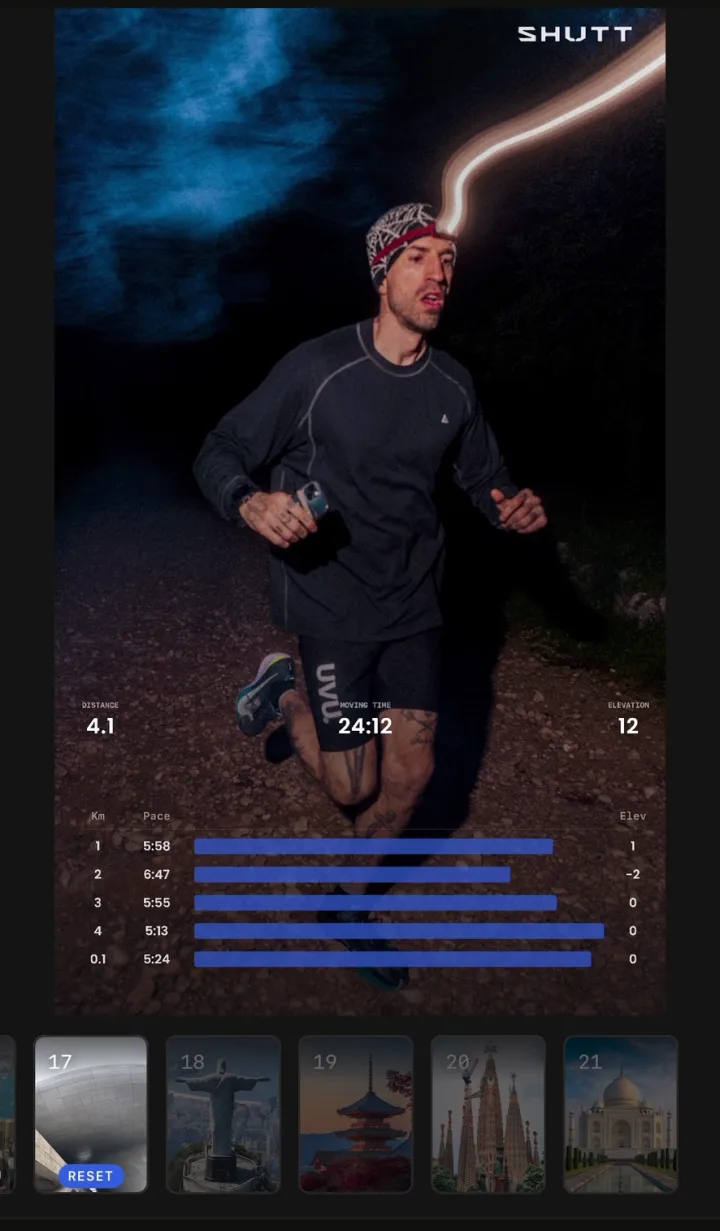
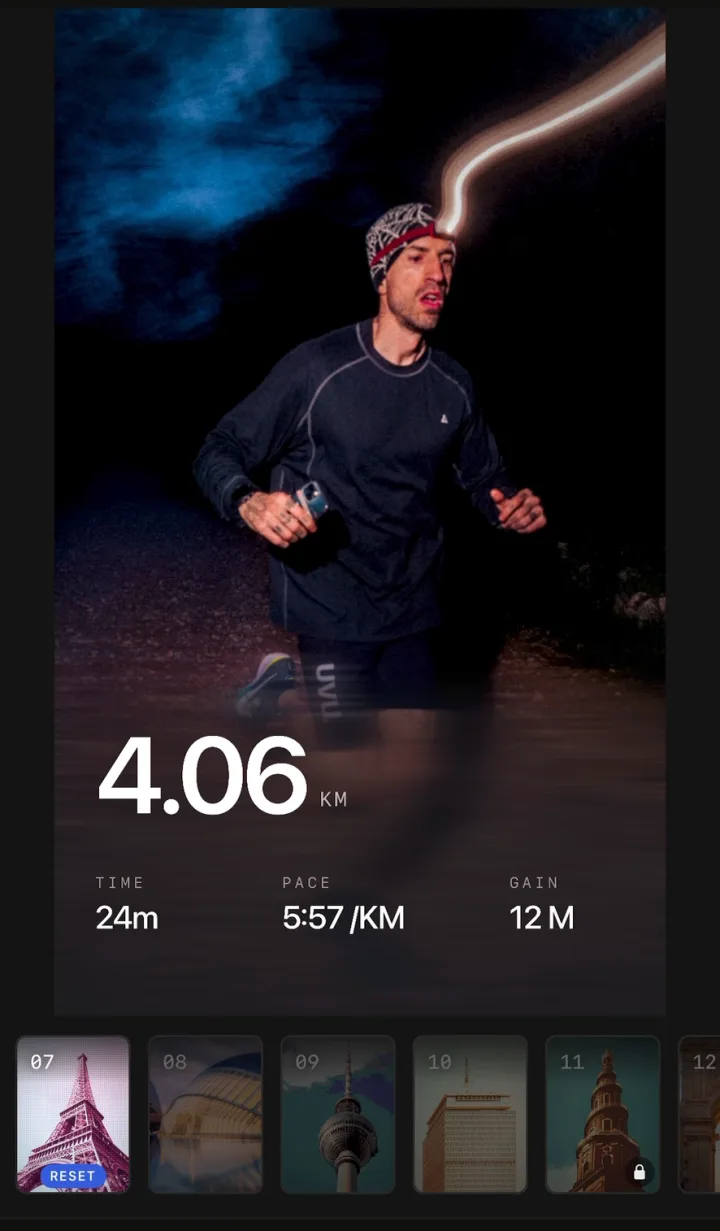
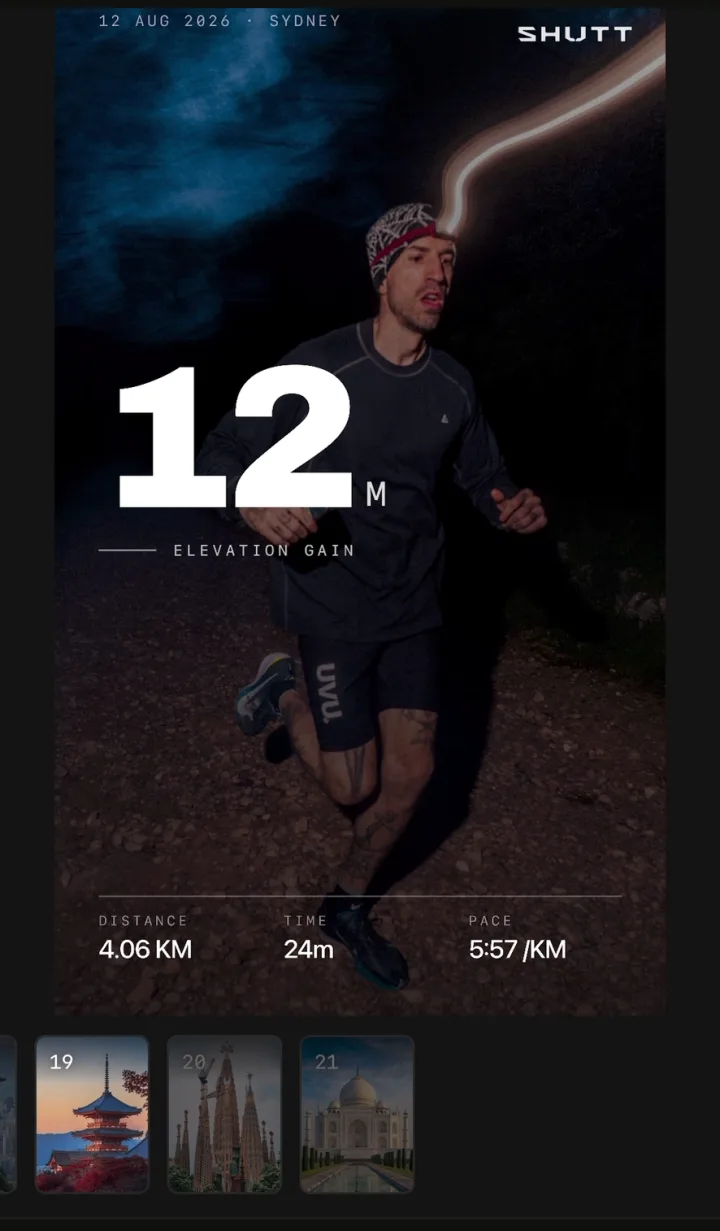
- Move anything that covers the photo. Every block drags, resizes and snaps, so you can move a splits chart away from a face or a horizon.
- Save to Photos or share.
There are more than 30 stats to work with, including splits, heart rate and zones, elevation, cadence and weather.
Two honest notes. Heart-rate stats, including zones, are part of SHUTT Pro, not the free version. And SHUTT is iPhone only. The features page has the full list of stats.
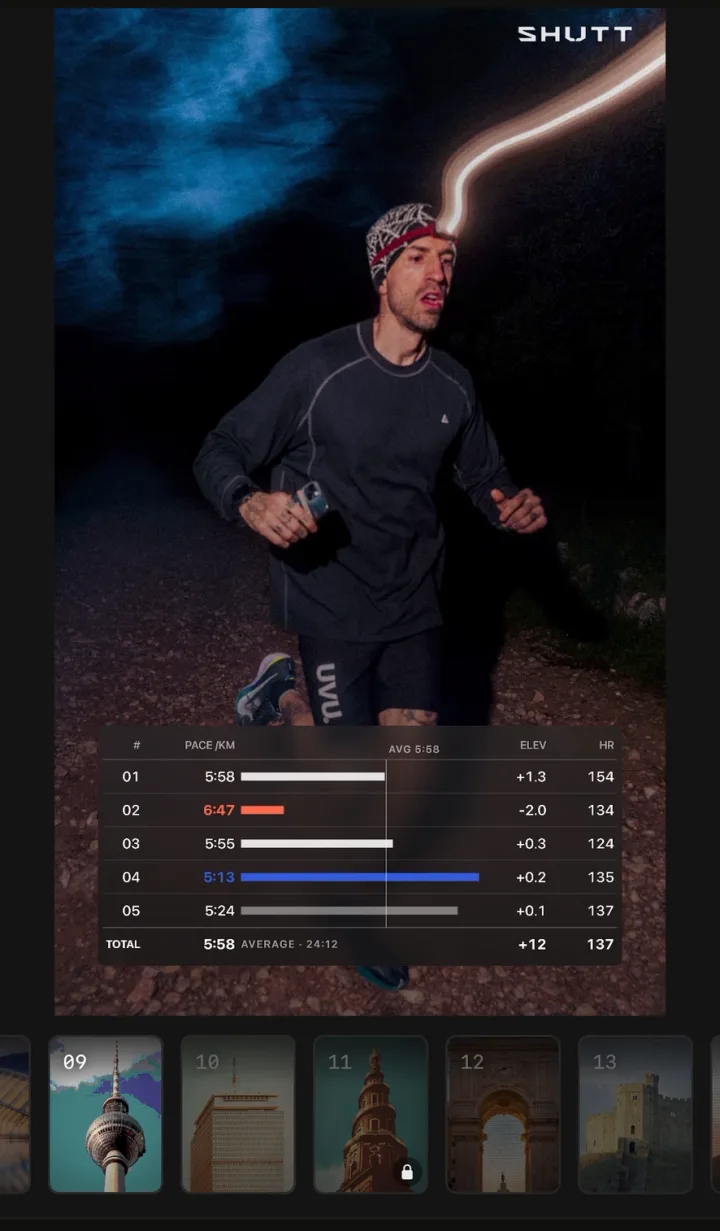
Combinations that work
Some pairings read well again and again:
- Interval session: rep splits as small bars, plus the average pace of the reps. Two elements.
- Long run: distance large, elevation profile underneath, moving time small. Three elements.
- Race: finish time large, date and race name small. Splits only if they were negative. Two or three elements.
- Easy run: zone bar, average heart rate, distance. Three elements.
If you want a ready-made layout instead of building one, the Strava Instagram Story template guide walks through layouts for each kind of post. And for posting the result, how to share Strava runs on Instagram covers Stories, posts and the size each one needs.